Types of Digital Signage: Menu Boards, Wayfinding, Dashboards and More
The main types of digital signage explained: menu boards, promotional screens, wayfinding, meeting room displays, dashboards, video walls and more.
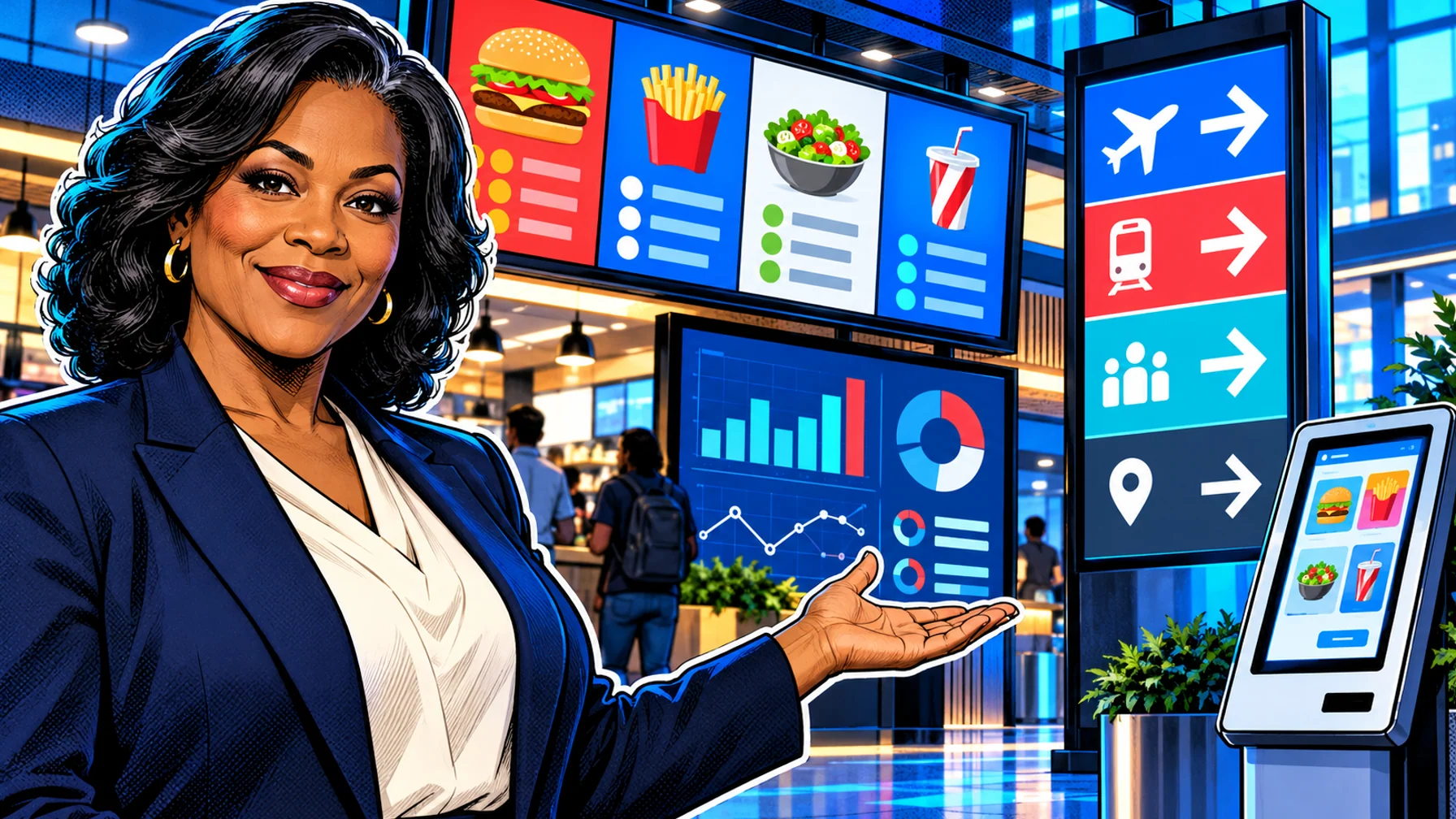
The main types of digital signage are menu boards, promotional and window screens, wayfinding and directories, meeting room and lobby displays, information and dashboard screens, queue and status screens, internal communications screens and interactive kiosks. They all share the same building blocks (a display, a player and software that schedules content), but each type has a different job, a different viewing distance and different content rules. Knowing which types of digital signage you need is the first step in choosing hardware, planning content and deciding where screens go. This guide walks through each type, what it is for and what makes it work.
How to think about types of digital signage
It helps to classify signage by the job it does rather than by the hardware. The same TV can be a menu board, a welcome screen or a KPI dashboard; what changes is the content, the schedule and where the screen hangs. Three questions define each type: who is looking at the screen, how long they look, and what you want them to do next. A customer in a queue reads for a few seconds and wants to choose; an employee walking past wants one update; a visitor at a junction wants a direction.
For how the underlying system works, see the complete guide to digital signage software.
Menu boards
Menu boards replace printed panels above counters and at drive-thrus. They show categories, items, prices and photos, and they switch automatically by daypart: breakfast, lunch, dinner and late night. Chains use them to show local prices from one template and to launch limited-time offers everywhere on the same day.
What makes them work: large prices, a clear reading order, few items per screen, and scheduling. The digital menu boards solution page shows the workflow, and the digital menu boards guide covers planning in depth.
Promotional and window screens
Retail windows, entrances, aisles and checkouts use screens to promote offers, new arrivals and seasonal campaigns. Window screens catch people walking past with one bold image; in-store screens support a product or category with a short loop.
What makes them work: one message per screen, strong imagery, campaigns with start and end dates, and screens bright enough for their location. Window displays often need high-brightness commercial panels. More ideas are in digital signage for retail.
Wayfinding and directories
Wayfinding screens help people find their way: building directories at entrances, directions at junctions, room changes for events, and schedules in stations. Hospitals, campuses, hotels, offices and transport hubs rely on them because the information changes more often than printed signs can keep up.
What makes them work: simple arrows and maps, large type, consistent placement at decision points, and content that updates when rooms or routes change. See digital wayfinding.
Meeting room and lobby displays
Offices use screens at reception to welcome visitors, and at meeting rooms to show the room name and schedule. Lobby screens can mix a welcome message with company news, weather and directions.
What makes them work: scheduled welcome messages, readable room information, and calm design that fits the office. The conference room displays page covers this type.
Information and dashboard screens
Dashboards show live numbers: production output, sales against target, support queues or project status. Information screens show news, weather, safety messages and announcements. Both are common in factories, warehouses, contact centres and open-plan offices.
What makes them work: a few numbers that matter, updated automatically, and visible from where people work. Pilosign supports live apps such as dashboards, weather and news next to your own content. Manufacturing teams use this type heavily; see manufacturing digital signage.
Waiting room and queue screens
Clinics, banks, service counters and government offices use screens to inform people while they wait: services, opening hours, how to prepare, health or product tips and directions. Queue screens can also show order-ready or waiting-time messages.
What makes them work: calm pacing, readable text, helpful content and no personal data on shared screens. See waiting room digital signage.
Internal communications screens
Break rooms, canteens, warehouses and staff entrances use screens to reach employees who rarely sit at a computer: news, recognition, shift information, training reminders and safety messages.
What makes them work: short messages refreshed often, scheduling by shift, and content owned by a named team, usually HR or operations.
Video walls and large-format displays
Video walls combine several displays into one large canvas for flagship stores, lobbies, control rooms and events. They make a strong impression but need careful planning: mounting, alignment, content made for the exact resolution and players that can drive the wall.
What makes them work: content designed for the format, professional installation and a clear purpose beyond decoration.
Interactive kiosks and touch screens
Kiosks let people act rather than just read: browse a catalogue, search a directory, check in or order. They add hardware (touch screens, enclosures) and software complexity, and they need maintenance and cleaning.
What makes them work: a single, obvious task, large touch targets, and a fallback when the kiosk is out of service. Ask your vendor explicitly whether interactive content is supported on the players you plan to use.
Planning details that apply to every type
Indoor versus outdoor screens
Any of these types can run indoors or outdoors, but outdoor and window screens are a different class of hardware. They need much higher brightness to stay readable in daylight, enclosures or ratings for weather and temperature, and careful mounting. Drive-thru menu boards, street-facing windows and transit platforms are the most common examples. If a screen faces the sun for part of the day, plan a commercial high-brightness display from the start rather than trying a consumer TV.
Static, scheduled and live content
Across all types, content falls into three groups. Static content stays the same until you change it, such as a store's opening hours. Scheduled content changes on its own by time, day or date, such as dayparts, campaigns and event welcome screens. Live content updates itself from a source, such as weather, news, clocks and dashboards. Most effective screens combine all three: a scheduled playlist with one or two live items to keep it fresh. Pilosign supports scheduling by time, day and location, and live apps like weather, news and dashboards next to your own images and video.
Portrait, landscape and multi-screen layouts
Orientation is part of the type. Portrait screens suit windows, entrances and directories because they match the shape of a person or a doorway. Landscape screens suit menus, dashboards and meeting rooms, where several items sit side by side. Multi-screen layouts, such as three menu panels in a row, let each screen carry one category while reading as one board. Decide orientation before buying mounts, and design templates for the exact orientation of each screen group.
Choosing the right types for your business
Start from the moments where information changes most or where people need guidance. A restaurant usually starts with menu boards; a retailer with the window and entrance; an office with reception and meeting rooms; a clinic with the waiting room; a factory with safety and shift screens. One platform can run several types at once, so you can add types as you learn. The industries section shows typical combinations by sector.
Frequently asked questions
Can one screen do several jobs? Yes. A lobby screen can rotate a welcome message, news and directions, as long as each item is short and the loop stays readable.
Do different types need different software? Not usually. One CMS can run menus, promotions, wayfinding and dashboards on different screens, with different schedules for each group.
Which type is cheapest to start with? Any type that uses an existing TV and a supported player. Menu boards, lobby screens and information screens are common first projects.
What is the most common mistake? Putting too much text on screen. Every type works better with one message at a time and large type.
Pick your first type and launch it
Choose the type that solves your most frequent problem, connect one screen and run it for a few weeks. Pilosign is free to use, runs on dedicated players, Android TV and Amazon Fire TV, and manages every type from one dashboard. Start with free digital signage software or talk to us.