Digital Signage Software vs. Canva + USB: A Workflow Comparison
Designing in Canva and carrying files on a USB stick works for one screen. See where it breaks and how digital signage software changes the workflow.
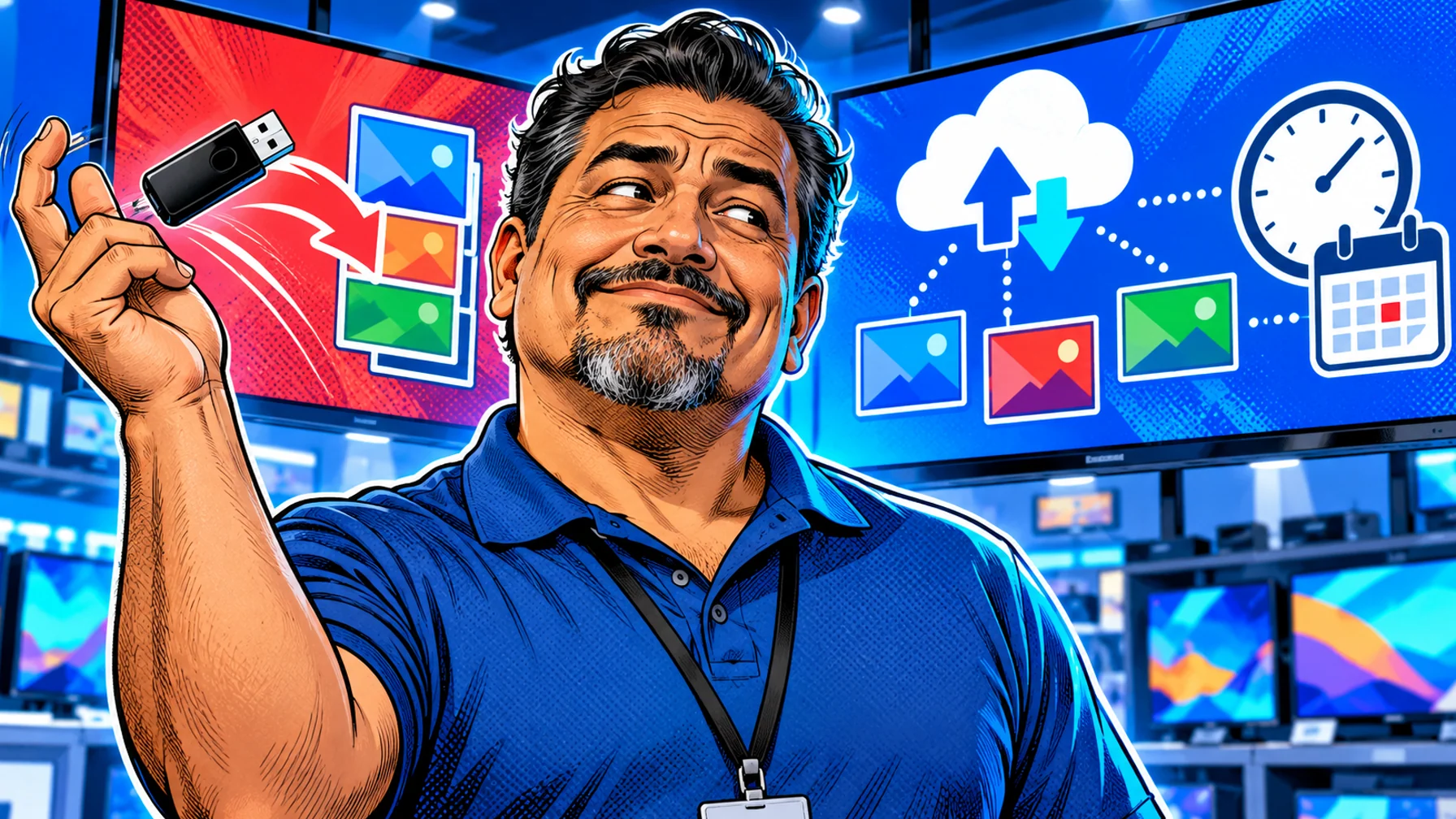
Digital signage software vs Canva + USB is really a comparison of two workflows. In the first, you design a slide in Canva or another general-purpose online design tool, export it, copy it to a USB stick and walk it to every TV. In the second, you design or upload content in signage software, schedule it, and publish it to every screen remotely. Both can put a good image on a screen. The difference shows up in time, accuracy and control once you have more than one screen, more than one person editing, or content that has to change by time of day. This guide compares the two step by step so you can see which one fits your team today.
How the Canva + USB workflow works
The manual workflow is familiar to almost every small business that has put a TV on a wall. Someone designs a menu, a promotion or a welcome slide in a design tool, exports it as an image or a short video, copies the file to a USB stick, plugs the stick into the TV and sets the TV to play the file on a loop.
Design. A general-purpose design tool makes it easy to produce an attractive slide quickly, with fonts, photos and brand colours.
Export. The design becomes a file: an image or a video in a resolution that hopefully matches the screen.
Transfer. The file travels on a USB stick. If there are three screens, the stick visits three screens. If there are three locations, someone drives.
Play. The TV's built-in media player shows the file in a loop, usually with little control over timing, order or what happens after a power cut.
For a single screen with content that changes once a season, this is a perfectly reasonable setup. It costs almost nothing and nobody needs to learn new software.
Where the manual workflow breaks
The weaknesses appear gradually, which is why teams often live with them longer than they should.
Every change is a site visit. Fixing a typo or a price means a new export, a new copy and a walk to the screen. Multiply that by screens and locations and a two-minute edit becomes an afternoon.
No scheduling. A USB loop plays the same thing all day. Breakfast and lunch menus, opening hours, a weekend offer or an evening message all require someone to swap files at the right moment.
Version drift. When several people keep their own copies of files, screens end up showing different versions. One store has the new price, another still has last month's offer.
No visibility. You cannot see from your desk what a screen is showing, or whether it is showing anything at all. A TV that switched to its input menu after a power cut can stay that way for days.
Fragile playback. Consumer TVs vary in how they handle USB playback: some resume the loop after a restart, others do not. Some play video smoothly, others stutter on large files.
None of these problems is dramatic on its own. Together they turn screens into a chore, and screens that are a chore end up showing stale content.
How the digital signage software workflow works
With digital signage software, the design step can stay the same, but everything after it changes. You upload your images and videos, or build slides from templates in the content editor, then arrange them into playlists and schedules. Each screen runs a player app that downloads its schedule and plays it.
Design or upload. Keep designing in the tool you like and upload the exported files, or use the editor's templates directly.
Schedule. Decide what plays on which screen, at what time and on which days. A breakfast menu can switch to lunch at 11:00 without anyone touching the TV.
Publish. Changes go to every screen in a group, or to one specific screen, from one dashboard.
Monitor. The dashboard lists your screens, so you can see where content is published and fix problems remotely.
With Pilosign, pairing a screen means opening the app on the TV or player and entering the registration code shown on screen into your dashboard. Pilosign runs on dedicated players, Android TV and Amazon Fire TV, and it is free to use. See the supported players and the step-by-step player guide.
Side-by-side comparison
Comparing the two workflows on the tasks that actually take time makes the trade-off clear.
Updating a price on five screens. Manual: five file copies and five visits. Software: one edit, one publish.
Showing different content by time of day. Manual: someone swaps files at the right time, every day. Software: a schedule does it automatically.
Different content per location. Manual: separate files per site, maintained by hand. Software: one template with location-specific changes, published to each group.
Knowing what each screen shows. Manual: walk over and look. Software: check the dashboard.
Adding live information. Manual: not possible without re-exporting. Software: live apps like weather, news or dashboards can sit in the same playlist as your slides.
Cost. Manual: the design tool and a USB stick. Software: depends on the vendor; Pilosign is free to use, so the difference is mostly time.
The pattern is simple: the design tool is not the problem. The transfer and playback steps are.
The hidden cost: time
Because the USB workflow costs almost nothing in money, its real cost is easy to miss. It is paid in staff time and in content that goes stale.
Count the minutes. Add up how long one update takes from the moment someone decides to change a screen to the moment the new content plays everywhere: export, copy, walk or drive, plug in, check. Then multiply by the number of updates in a month.
Count the delays. When updates take effort, they get postponed. An offer that should start on Monday starts on Wednesday, an expired promotion stays up for a week, and the menu shows an item that sold out.
Count the errors. Every manual copy is a chance to use the wrong file or forget a screen.
Signage software does not make design faster, but it removes most of the time between "the design is ready" and "it is on every screen". For teams that update content often, that is where the value is.
When the manual workflow is still fine
It would be dishonest to say every screen needs software. The USB approach is enough when you have one screen, the content changes rarely, nobody needs time-based content, and someone is always near the TV. A single poster-style slide in a quiet reception area, for example, may never justify a change.
The signals that you have outgrown it are easy to spot. You update content more than once a month. You have more than one screen or more than one location. Content should change during the day. More than one person edits the screens. Or a screen has ever shown the wrong thing for longer than you would like to admit.
How to move from USB to signage software
Switching does not mean throwing away your design habits. Most teams move in a few small steps.
Keep your design tool. Continue designing in the tool your team knows and export the files at the screen's resolution.
Start with one screen. Install the player app on one TV, pair it with the registration code and recreate today's loop as a playlist. Our checklist for free digital signage software on smart TVs covers what to check first.
Add a schedule. Pick the one change you make most often, such as a daypart menu or opening hours, and schedule it.
Group screens by location. Once the first screen runs well, add the others and organise them into groups so one publish reaches the right screens.
Retire the USB stick. When every screen is paired, remove the sticks so nobody accidentally plugs in an old file.
If you are weighing several platforms rather than just leaving USB behind, use the criteria in our digital signage software comparison to score them on the same terms.
FAQ
Can I keep using Canva with digital signage software? Yes. Many teams design in a general-purpose design tool, export images or videos and upload them to their signage software, which then handles scheduling and publishing.
Is a USB stick enough for one TV? For one screen with content that rarely changes, often yes. Once you need schedules, several screens or remote changes, software saves time.
Do I need new screens to switch? Usually not. If your TV runs Android TV or accepts a streaming stick, you can install a player app and pair it.
What happens to my existing designs? Export them as images or video and upload them; they become slides in a playlist.
How long does the switch take? Pairing a supported device and recreating a simple loop takes minutes; scheduling and grouping can follow step by step.
Ready to stop carrying USB sticks? Start with free digital signage software and move your first screen to a schedule today.