Digital Signage Remote Management: Updates, Health and Recovery
How digital signage remote management works: push updates, check screen health, recover failed players and organise many locations without site visits.
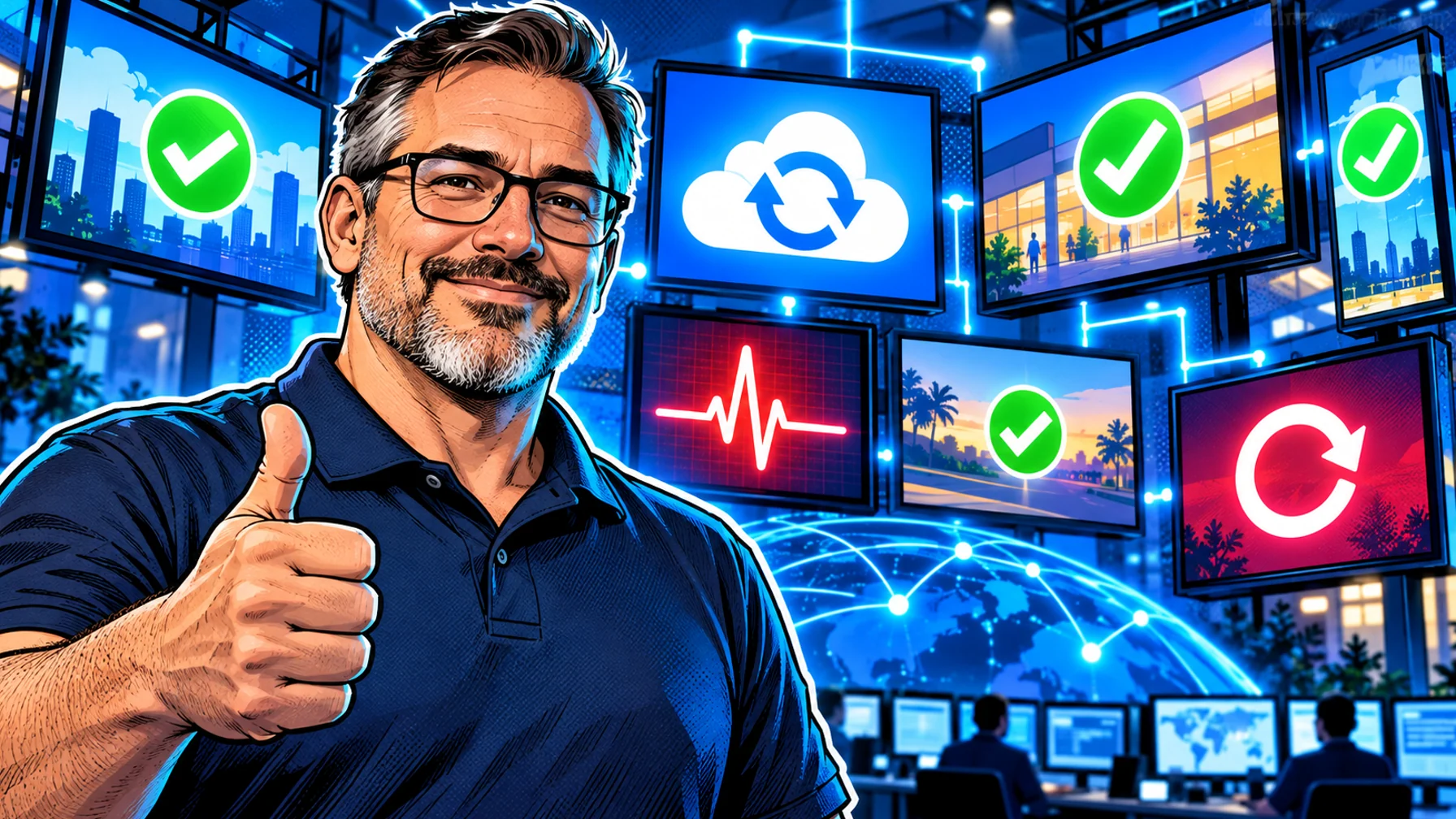
Digital signage remote management means running your screens without walking up to them: publishing updates from a dashboard, knowing which screens are online, and getting a failed screen back without a technician on site. It covers three jobs. Updates: changing content and schedules for one screen, a group or the whole network. Health: seeing that each screen is connected and playing what it should. Recovery: fixing or replacing a screen that stopped, with as little travel as possible. This guide explains how to set up each part, what to ask a vendor, and the habits that keep remote screens reliable.
Why remote management matters
The most expensive part of a screen network is rarely the hardware. It is the time someone spends driving to a location to change a USB stick, restart a TV or discover that a screen has been black for a week. Remote management turns those visits into a few clicks, and it gives head office and store teams the same view of what is on every screen.
It also changes how you use the screens. When updates are easy, you change content more often: dayparts, local offers, urgent notices. Screens that are hard to update end up showing the same slides for months.
Part 1: Remote updates
Organise screens before content. Name each screen after its real location and add it to groups, for example by site, region or screen type. Pilosign shows every screen in one dashboard and lets you group screens by location, so you can update one screen, a group or the whole network at once.
Use schedules instead of manual changes. Scheduling by time, day and location means the breakfast menu, the weekend offer or the evening message appears on its own. Every manual change you replace with a schedule is one less thing to forget.
Keep templates central. A template managed by one team keeps every location on brand, while local teams change only what should differ, such as a price or a local event.
Plan urgent messages. Decide in advance how you will push a closure notice or safety message to every screen quickly, and who is allowed to do it.
Part 2: Screen health
A screen that looks fine in the dashboard but shows a black picture in the shop is the classic failure. Good health monitoring closes that gap.
Online status. At minimum, you should see which players are connected. Check this daily, or ask your vendor whether it can alert you when a screen goes offline.
What is actually playing. Some platforms can confirm which content played and when (often called proof of play) or show a recent screenshot from the player. Ask whether your vendor offers this and how it is reported.
Display power. A player can be online while the TV is switched off. Ask how your setup detects the display itself being off, and make sure TV sleep timers and eco modes are disabled.
A weekly check. Even with good tools, a short weekly look at the screens list catches the screens that drift: wrong content, an old schedule, a player that reconnects every hour.
Part 3: Recovery without a site visit
Restart remotely where possible. Ask your vendor whether players can be restarted or the app relaunched from the dashboard.
Design for self-recovery. Choose players and TVs that power on by themselves after an outage and return to the signage app. Test it once: unplug the screen and plug it back in.
Offline behaviour. Ask how the player behaves when the network drops: does it keep playing downloaded content and resync when the connection returns? That determines whether a network problem becomes a black screen.
Swap, do not repair. Keep a spare, pre-configured player for important locations. With Pilosign, a replacement is paired by opening the app and entering the registration code shown on screen into your dashboard; assign it to the same group and it picks up the same content.
Document each site. Note where the player sits, which socket and network it uses and who on site can reach it. A two-line note saves an hour on the phone.
Choosing hardware that is easy to manage remotely
Remote management starts with the device behind the screen. Consumer TVs are designed for living rooms and may show pop-ups or update at awkward times. Streaming sticks are fine for light use. Dedicated players are built for screens that run all day and usually offer wired networking and reliable power-on behaviour. Pilosign runs on dedicated players, Android TV and Amazon Fire TV; see the supported players and the digital signage player guide for the trade-offs.
Roles and responsibilities
Remote management works best when everyone knows their part. Head office owns templates, brand rules and network-wide campaigns. Regional or store managers update local details within those templates. IT or an AV partner owns hardware, networks and recovery. One named person per site can check the screen and power-cycle it when asked. Write this down before you scale; the guide to digital signage software for multi-location teams covers how to structure it.
Rolling out a change across many screens
Big changes, such as a new menu, a rebrand or a seasonal campaign, are where remote management earns its keep, and where mistakes spread fastest. A simple rollout routine keeps them under control.
Prepare in advance. Build the new content and schedule it to start at the right moment, rather than publishing by hand on launch day.
Test on one screen or one site first. Publish to a pilot group, check it on the real screens, then extend to the rest of the network.
Check readability on site. Ask a store manager to send a photo of the screen. What looks fine in the editor can be too small from the queue.
Keep the previous version. If something goes wrong, you want to switch back quickly instead of rebuilding content under pressure.
Communicate. Tell local teams what changes and when, so nobody "fixes" a new screen back to the old content.
Common remote management mistakes
No naming rule. "TV 3" means nothing six months later. Name screens after their real place.
Manual changes instead of schedules. Every manual daily change is a change someone will eventually forget.
Assuming online means visible. A connected player behind a switched-off TV still looks fine in a dashboard. Check the display settings and, where possible, what actually plays.
No spare hardware. Waiting days for a replacement player leaves a key screen dark.
Everyone can change everything. Without clear roles, local edits can break brand templates or network campaigns.
Questions to ask a vendor about remote management
How do I see which screens are online, and can I be notified when one goes offline?
Can I restart a player or relaunch the app remotely?
What does a screen show when the network drops, and how quickly do changes arrive when it comes back?
Can I confirm what actually played on a screen and when?
How are device and app updates handled, and can I keep them outside opening hours?
How do roles work, so local teams edit only their own screens?
Clear answers to these six questions tell you more about day-to-day effort than any feature list.
A remote management checklist
Names and groups: every screen named by location and grouped by site.
Schedules: recurring content scheduled, not changed by hand.
Status: a daily look at which screens are online.
Settings: sleep timers and eco modes off; auto power-on tested.
Network: wired where possible; Wi-Fi tested at the screen.
Spares: a pre-configured spare player for important sites.
Contacts: one person per site who can reach the screen.
FAQ
What is digital signage remote management? It is managing screens from a central dashboard: updating content, checking that screens are online and recovering players without going on site.
Can I update screens in several locations at once? Yes. With screen groups you can publish to one screen, one location or every screen in the network.
How do I know a screen has stopped working? Check the online status in your dashboard regularly, and ask your vendor about offline alerts and proof of play.
Do I need special hardware? No, but reliable players with wired networking and auto power-on make remote management much easier.
Manage your screens from one place
Connect your screens, group them by location and replace manual changes with schedules. Start with free digital signage software, see how the digital signage software platform works, or talk to us about a larger network.